
Formatting Disk in Linux

Formatting a disk in Linux is like giving it a fresh start. It wipes any existing data and sets up a new file system to organize and store your files. This is essential when setting up a new drive, reusing an old one, or changing how you want to store data. By understanding how to format disks, you gain better control over your storage and ensure optimal performance and reliability.
Here we’ll walk you through the step-by-step process of preparing your disk for use.
Identify the Disk
Before formatting a disk, it is important to identify the correct disk and its partitions. This helps prevent accidental data loss by ensuring you are working with the intended storage device.
Two commonly used commands for this purpose are lsblk and fdisk.
Using lsblk
The lsblk command lists all available block devices, including their partitions and mount points.
$ lsblk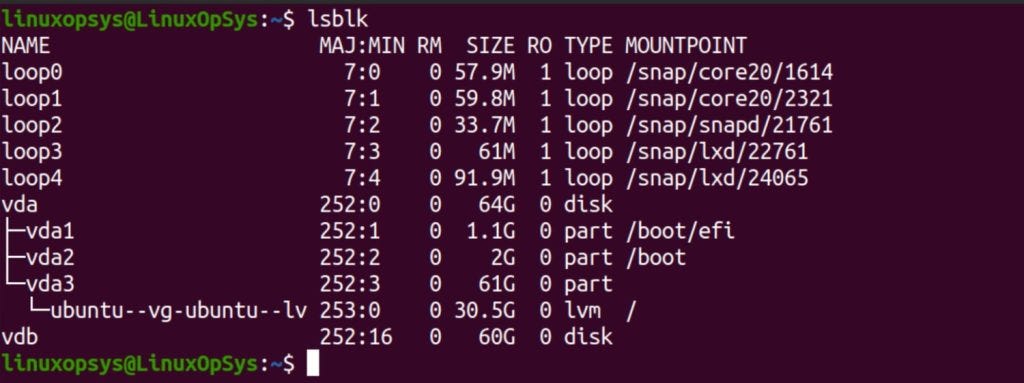
Using fdisk
The fdisk command provides detailed information about disks and their partitions.
$ sudo fdisk -l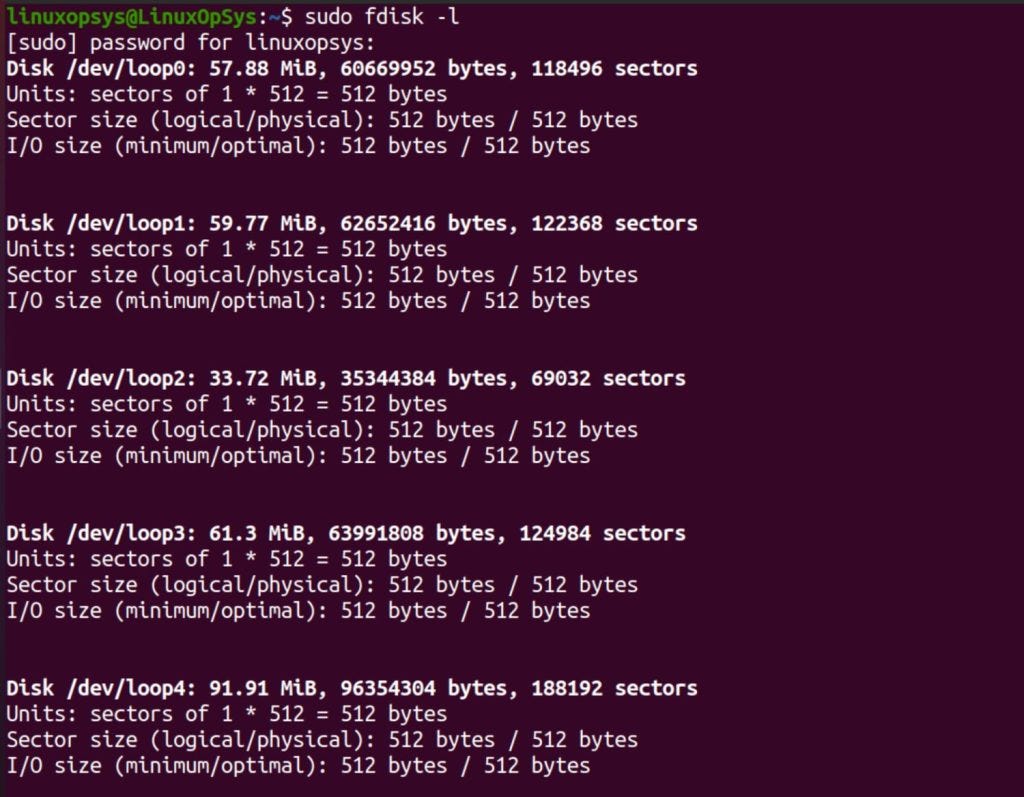
These commands help you accurately identify disks and partitions, ensuring that you work with the correct storage device during the formatting process. This list will include disks attached local (on-board controller) and mapped from storage device.
Related Read: How to Scan New LUNs on Linux
Partition the Disk
If you have a brand-new disk or want to reorganize an existing one, you might want to divide it into multiple partitions.
There are a few different tools you can use to partition a disk in Linux, including fdisk, parted, and gdisk.
Related Read: fdisk vs parted
Here’s a basic example using fdisk:
$ sudo fdisk /dev/vdb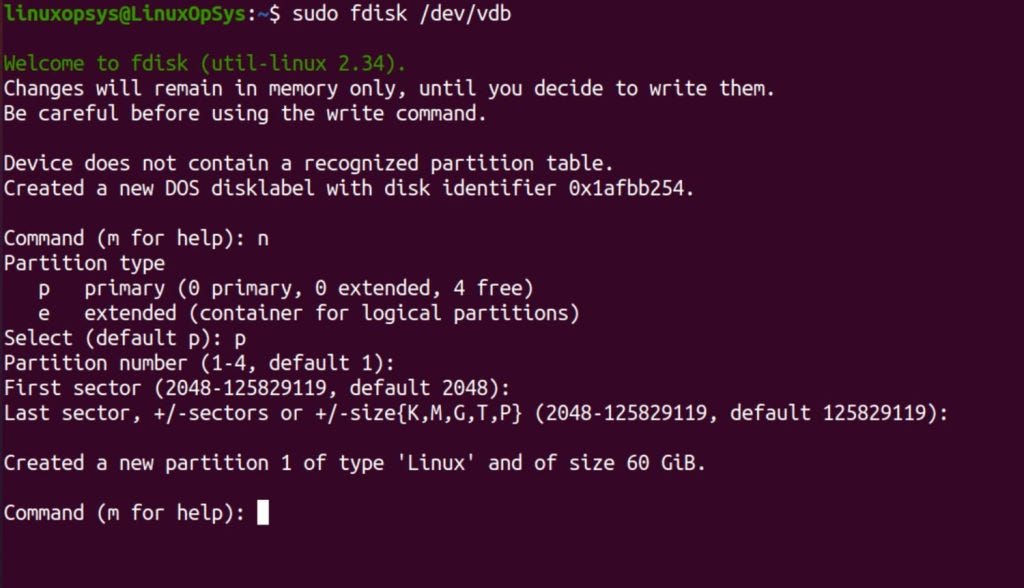
To use the fdisk utility to partition your disk:
Press
nto create a new partition.Select the partition type (usually
pfor primary).Specify the partition number, first sector, and last sector (you can usually just press Enter to accept the defaults).
If you want to create more partitions, repeat steps 1-3.
Press
wto write the changes to the disk and exitfdisk.
Remember that you can only format and mount partitions, not the entire disk itself. If your disk doesn’t have any partitions yet, you’ll need to create at least one before you can format it.
Format the Partition
Once you’ve partitioned your disk, the next step is to format the new partition(s) with a file system. This process creates the structure that Linux uses to organize and access the data on the disk.
There are various file systems available for Linux, each with its own advantages and disadvantages. Some of the most common ones include:
ext4: The default file system for many Linux distributions, offering a good balance of performance, features, and stability.
xfs: A high-performance file system designed for handling large files and high throughput.
btrfs: A newer file system with advanced features like snapshots, transparent compression, and data integrity checks.
The choice of file system depends on your specific needs and use case. For most general-purpose use, ext4 is a safe bet.
To format a partition, use the mkfs (make filesystem) command followed by the type of file system you want to create:
$ sudo mkfs.ext4 /dev/sdb1In the above command, replace /dev/sdb1 with your actual partition identifier.
The command formats the partition /dev/sdb1 with the ext4 file system. Once the formatting process is complete, your partition is ready to be mounted and used for storing data.
Read on Format a USB Drive as exFAT on Linux
Mount the Partition
Now that your partition is formatted, it’s like an empty room ready for furniture. To make it usable, you need to mount it. Mounting is the process of connecting a file system (in this case, the one on your formatted partition) to a specific directory in your existing Linux file system. Think of it as creating a door between the room and the rest of your house.
To mount a partition, you’ll typically use the mount command along with the partition’s device name (e.g., /dev/sdb1) and the directory where you want to access it (known as the mount point):
$ sudo mount /dev/sdb1 /dataThis command mounts the /dev/sdb1 partition to the /data directory. You’ll need sudo for this because mounting requires elevated privileges. After this, anything you put in the /data directory will actually be stored on the newly formatted partition.
However, this mount is temporary. If you reboot your system, the partition will be unmounted. To make the mount permanent, we’ll use /etc/fstab in the next step.
Update /etc/fstab
To ensure the partition mounts automatically at boot, update the /etc/fstab file with the partition’s UUID.
1. Get the UUID of the Partition:
$ sudo blkid /dev/vdb1Output:
/dev/vdb1: UUID=”1a2b3c4d-5e6f-7a8b-9c0d-1e2f3g4h5i6j” TYPE=”ext4”2. Edit /etc/fstab:
$ sudo nano /etc/fstab3. Add Entry:
UUID=1a2b3c4d-5e6f-7a8b-9c0d-1e2f3g4h5i6j /data ext4 defaults 0 2Where:
UUID=1a2b3c4d-5e6f-7a8b-9c0d-1e2f3g4h5i6j: The UUID of the partition./data: Mount point directory.ext4: Filesystem type.defaults: Mount options.0 2: Dump and fsck options.
These steps ensure the partition is correctly formatted, mounted, and available for use on your Linux system.
You may also automate all this process - here is an example bash script to create and format a partition.
Thanks for reading!
If you enjoyed this content, don’t forget to leave a like ❤️ and subscribe to get more posts like this every week