
Basic Networking in Linux

Networking is essential in today’s interconnected world, and Linux provides a powerful set of tools to manage and troubleshoot network connections. This guide covers essential networking concepts, configuration files, commands, and practical tips.
The Hosts File
The /etc/hosts file is your local “phone book” for network names. It maps human-readable hostnames to IP addresses, allowing your system to quickly resolve local connections.
To view its contents run the command:
$ cat /etc/hosts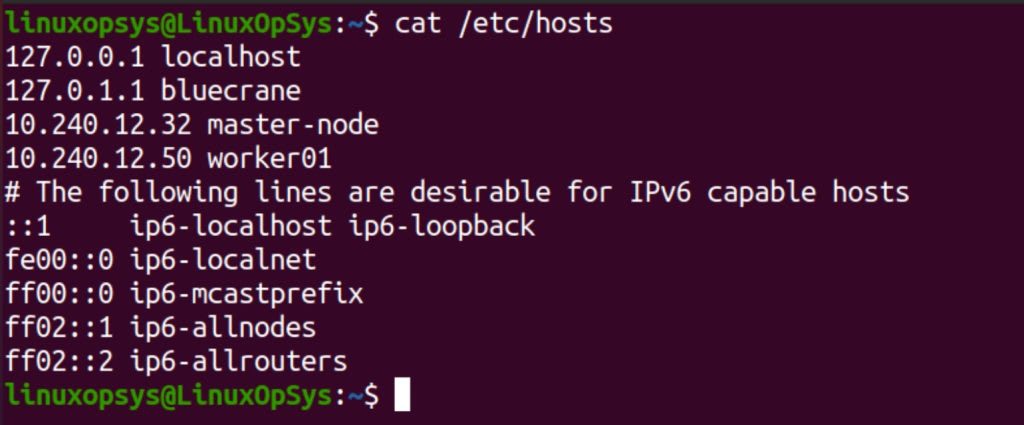
Resolve.conf File
The /etc/resolv.conf file tells your system where to look up domain names (like google.com) when they’re not found in /etc/hosts. It lists the IP addresses of DNS servers, which are responsible for translating domain names into IP addresses.
$ cat /etc/resolv.conf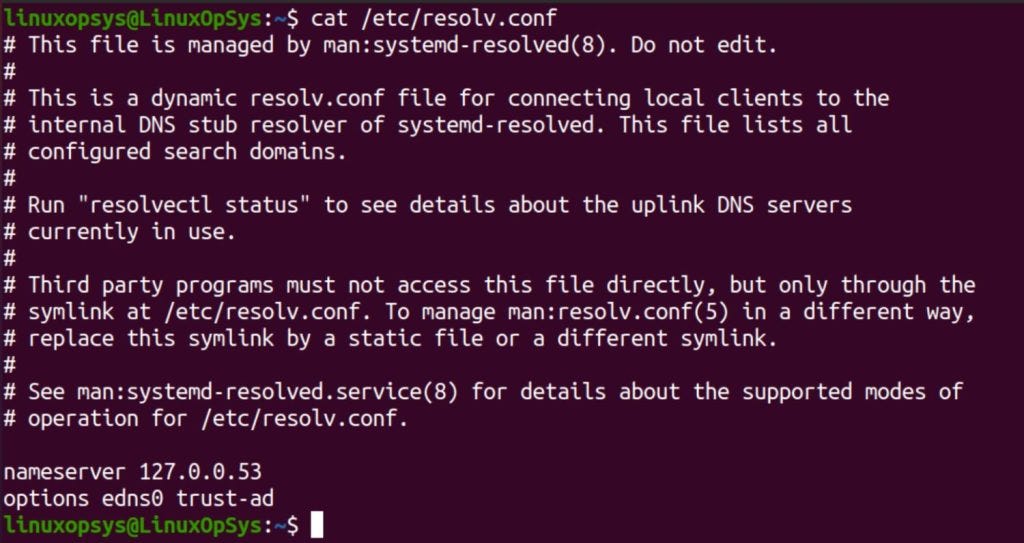
In modern systems you can delegate the management of /etc/resolv.conf to systemd-resolved by symlinking /run/systemd/resolve/resolv.conf for more flexibility.
Client DHCP Settings
Most networks use DHCP (Dynamic Host Configuration Protocol) to automatically assign network settings to devices. This simplifies setup, as you don’t need to manually configure IP addresses, gateways, and DNS servers.
Your DHCP client settings are typically stored in /etc/dhcp/dhclient.conf. You can view them with:
$ cat /etc/dhcp/dhclient.conf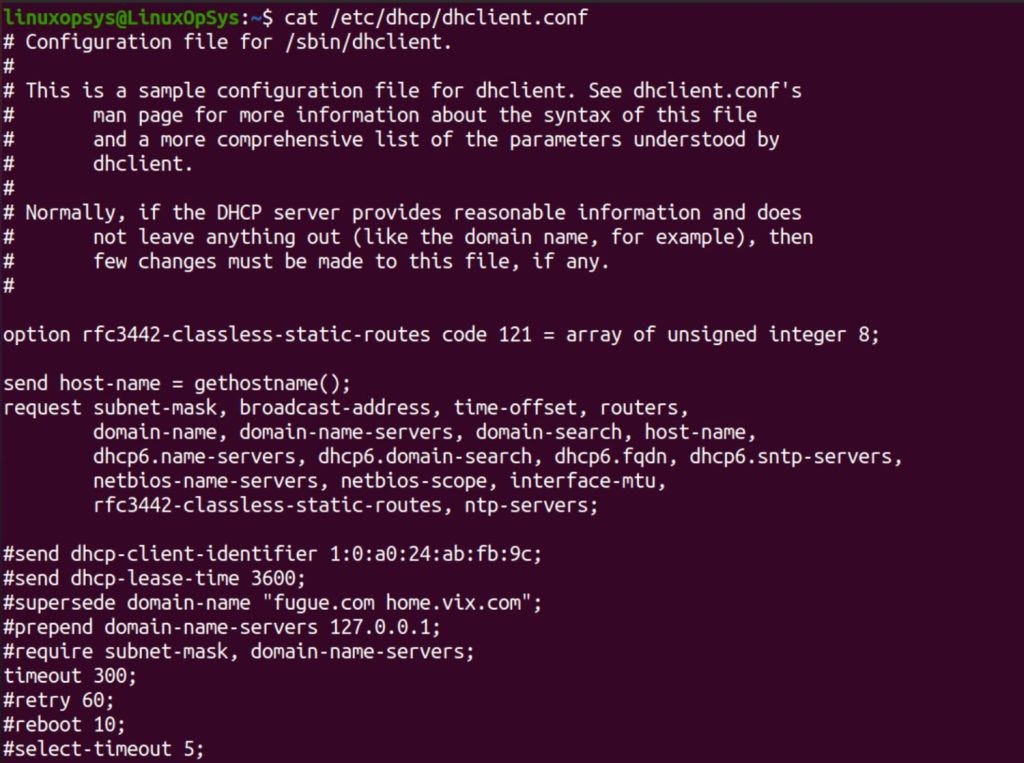
This file contains options like:
request: IP address, subnet mask, default gateway, etc.
timeout: How long to wait for a DHCP server to respond.
retry: How often to retry if the first attempt fails.
Display All Interface IPs
To see all the IP addresses currently assigned to your network interfaces (like Ethernet or Wi-Fi cards), use the ip addr show command:
$ ip addr show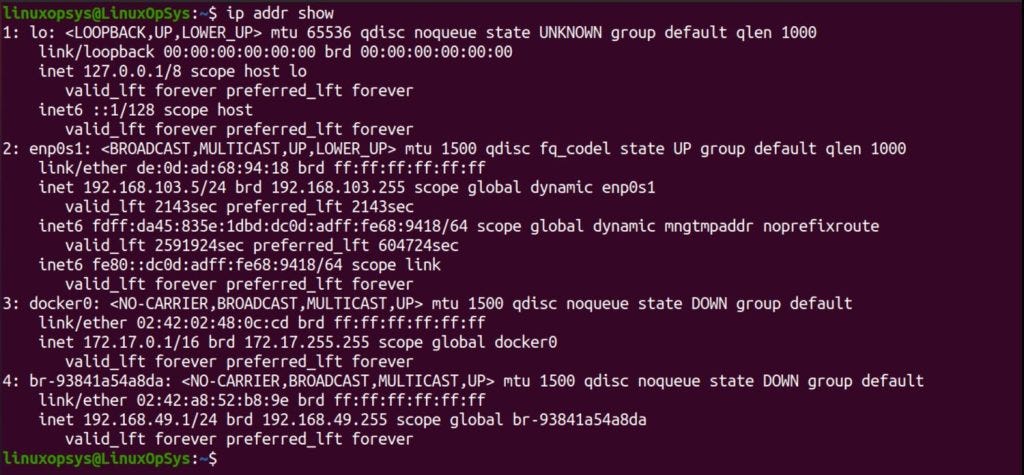
Apart this there are different ways you can get assigned IP in Linux.
On Fedora and RedHat-based systems, these files are typically found in the /etc/sysconfig/network-scripts directory. Each interface has its own file, usually named something like ifcfg-eth0, ifcfg-enp0s3, etc.
To view the contents of one of these files:
$ cat /etc/sysconfig/network-scripts/ifcfg-eth0
TYPE=Ethernet
BOOTPROTO=dhcp
ONBOOT=yes
These lines define the interface type, whether to use DHCP, and whether to bring the interface up at boot. You can modify these and other settings to customize your network configuration.
Setting a Static IP
While DHCP is convenient, there are times when you might want to assign a fixed (static) IP address to your system. This can be done using several methods:
1. ip command: The ip command is a versatile tool for managing network interfaces. It can be used to set a static IP address, netmask, and default gateway.
$ sudo ip addr add 192.168.1.100/24 dev eth0
$ sudo ip link set eth0 up
$ sudo ip route add default via 192.168.1.1 dev eth0
2. nmcli (NetworkManager): Another option is to use nmcli, a command-line tool for managing network connections provided by NetworkManager:
$ nmcli con mod eth0 ipv4.addresses 192.168.1.100/24
$ nmcli con mod eth0 ipv4.gateway 192.168.1.1
$ nmcli con mod eth0 ipv4.dns 8.8.8.8
$ nmcli con up eth0
Here’s what’s happening:
We modify the
eth0connection to use the IP address 192.168.1.100 with a /24 netmask.We set the gateway to 192.168.1.1 (your router).
We specify a DNS server (8.8.8.8 in this case).
We bring the
eth0connection up with the new settings.
3. Graphical User Interface (GUI): If you’re using a desktop environment, you can usually configure network settings through the system settings or network manager applet.
However, it’s important to note that changes made using the ip or nmcli commands might not persist after a reboot. To make them permanent, you’ll need to modify the appropriate configuration file (e.g., the ifcfg-eth0 file we mentioned earlier).
Adding a Default Gateway
The default gateway is the IP address of the router that your system uses to access the internet or other networks. You can add or change the default gateway using the ip route command:
$ ip route add default via 192.168.1.1This command sets the default gateway for your system to 192.168.1.1. However, this change may not persist across reboots. To make this change persist across reboots, you need to update the network configuration files.
You can display the routing table to see how network traffic is directed.
$ ip route show
Network Service
Start and stop network services using systemctl.
$ systemctl start NetworkManager
$ systemctl stop NetworkManager
These commands help manage network configurations and services efficiently, ensuring your Linux system is well-connected and performing optimally.
Network Troubleshooting
Networking issues are a common source of frustration. Fortunately, Linux offers several tools to help diagnose and fix them.
Verifying Network Port
Imagine you’re trying to access a website (e.g., yahoo.com), but it’s not loading. You suspect a problem with port 443 (HTTPS). To test if the remote server is listening on that port, you can use telnet:
$ telnet yahoo.com 443
If the connection is successful, you’ll see a blank screen or a brief message. If the connection fails, you’ll get an error like “Connection refused,” indicating that the port is closed or blocked.
Verifying Open Ports (Locally)
Sometimes, you need to check if a service is listening on a specific port on your own system. Let’s say your web server isn’t working, and you want to see if it’s listening on port 80. Here’s how
$ netstat -tunlp | grep 80
tcp 0 0 0.0.0.0:80 0.0.0.0:* LISTEN 12345/httpd
This command filters the output of netstat, showing only TCP (-t) and UDP (-u) connections in numeric format (-n) that are listening (-l) on port 80. The -p flag also shows the process ID (PID) and name of the process using the port.
Testing Connectivity
To test connectivity to a specific host, use the ping command.
$ ping google.com
This command sends ICMP echo requests to Google. If responses are received, the host is reachable.
Tracing Route
To trace the route packets take to reach a host, use the traceroute command.
$ traceroute google.com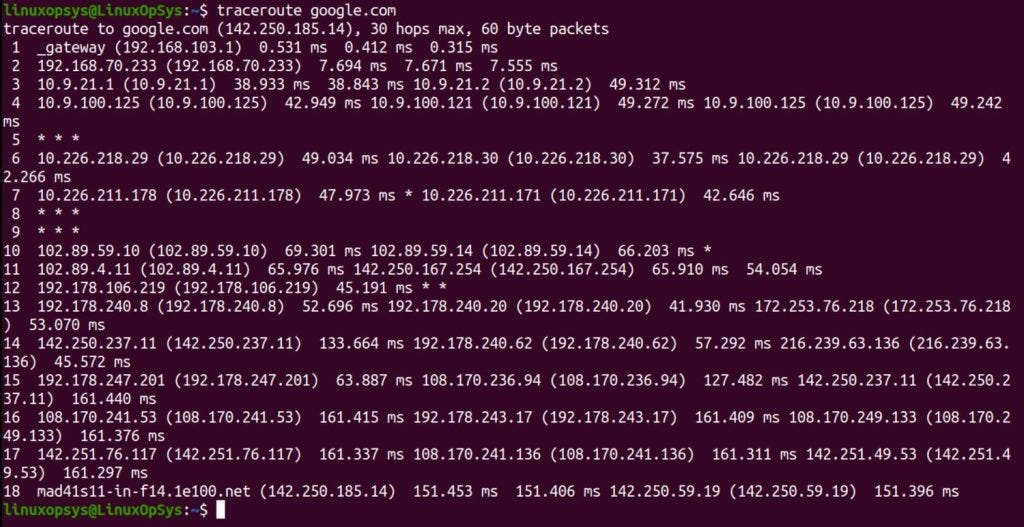
Capturing Network Traffic
To capture network traffic on a specific interface, use the tcpdump command.
$ sudo tcpdump -i enp0s1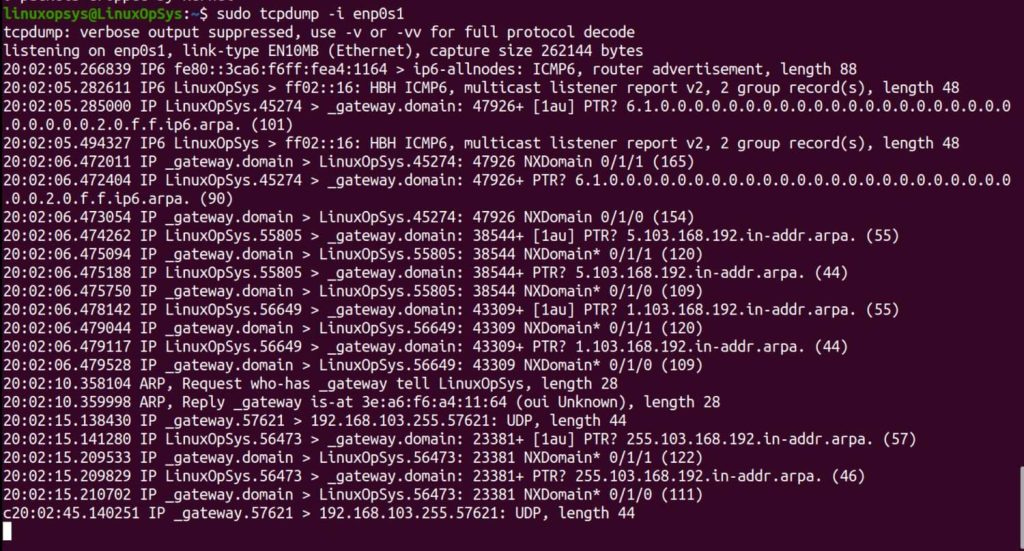
DNS query
dig is the common tool used to obtain DNS records and network troubleshooting. You may also use resolvectl with query option to get the same information.
Example usage of dig and resolvectl:
# Simple A record query
$ dig example.com

# Query using a specific DNS server
$ dig @8.8.8.8 example.com

# Reverse DNS lookup
$ dig -x 8.8.8.8

# Provides a short, concise output, query 127.0.0.53 is typically used for local DNS resolution in systems that use systemd-resolved.
$ dig +short @127.0.0.53 example.com

# Query a domain
$ resolvectl query example.com

# Monitor changes in DNS and DNSSEC ie the ongoing queries
$ resolvectl monitor


# Inspecting DNS Cache
$ resolvectl show-cache
You may also use tcpdump command to capture DNS traffic on port 53, example tcpdump -i any -s0 -A -n port 53 - use case such as identifying if DNS queries are being sent and responses received correctly.
Network Configuration and Monitoring Tools
Linux offers various tools to help you manage your network settings:
NetworkManager
NetworkManager provides tools for managing network connections. Use nmcli and nmtui for command-line and text-based interface management, respectively.
$ nmcli d status
$ nmtui
Netplan
Netplan is used for network configuration in Ubuntu. Configuration files are typically found in /etc/netplan/.
$ sudo cat /etc/netplan/00-installer-config.yaml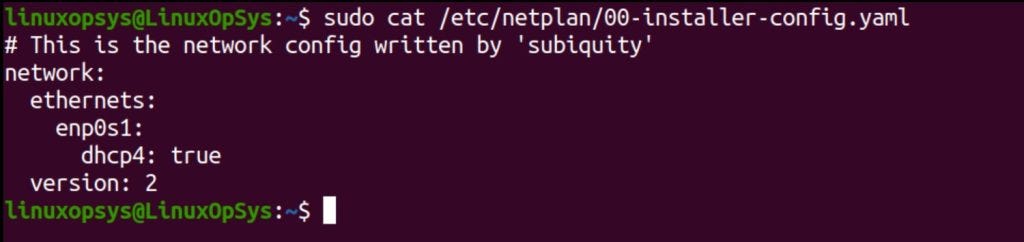
Linux offers powerful tools to monitor and analyze network traffic, providing insights into bandwidth usage, connection details, and potential issues.
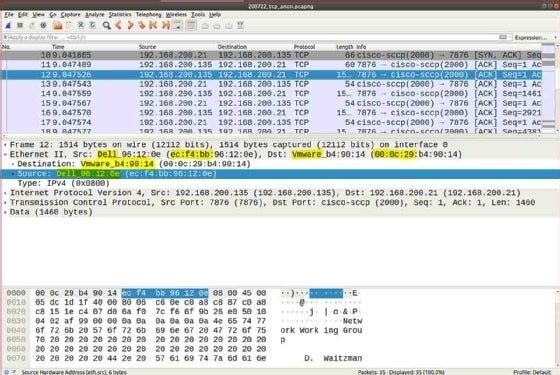
Wireshark
Wireshark is a graphical tool for network analysis and troubleshooting. It captures and displays packets for detailed examination.
iftop
To monitor network bandwidth usage, use iftop.
$ sudo iftop -i enp0s1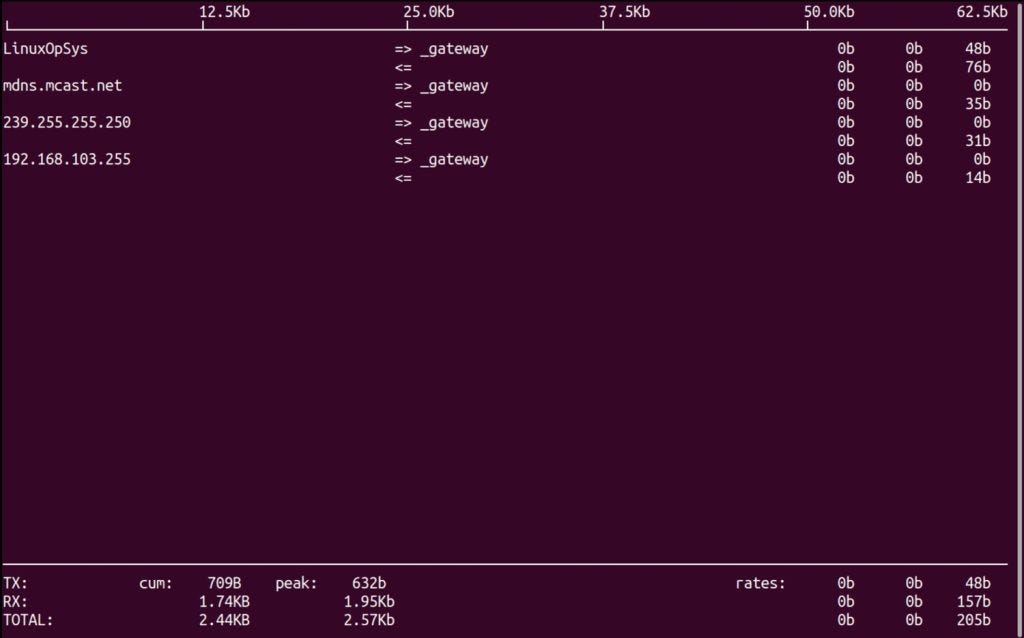
ss
The ss command is an advanced tool for examining sockets in Linux, offering faster and more detailed information than the older netstat command. This makes it invaluable for network monitoring and troubleshooting.
When executed without any options, ss lists all open sockets. However, you can refine the output with various options.
For example, to display a summary of socket statistics, use the -s option:
$ ss -s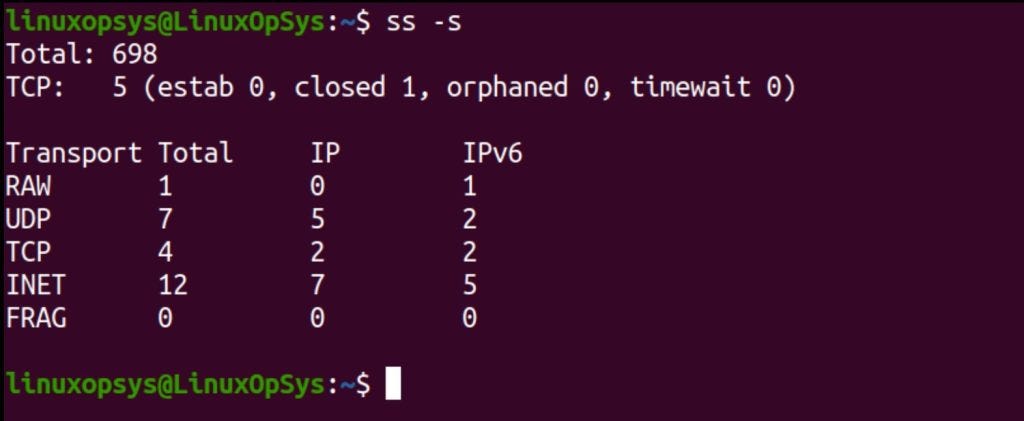
Furthermore, using ss -tunl provides a comprehensive list of all TCP and UDP sockets, both listening and non-listening:
$ ss -tunl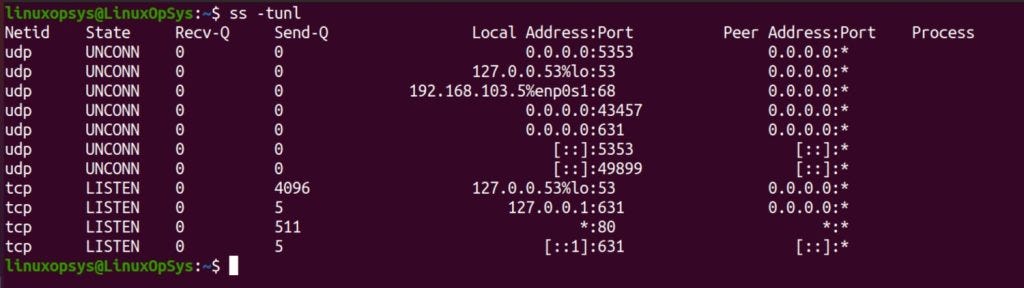
Moreover, filtering is a key feature in ss, allowing you to focus on specific types of connections. For instance, to list all established connections, use:
$ ss state established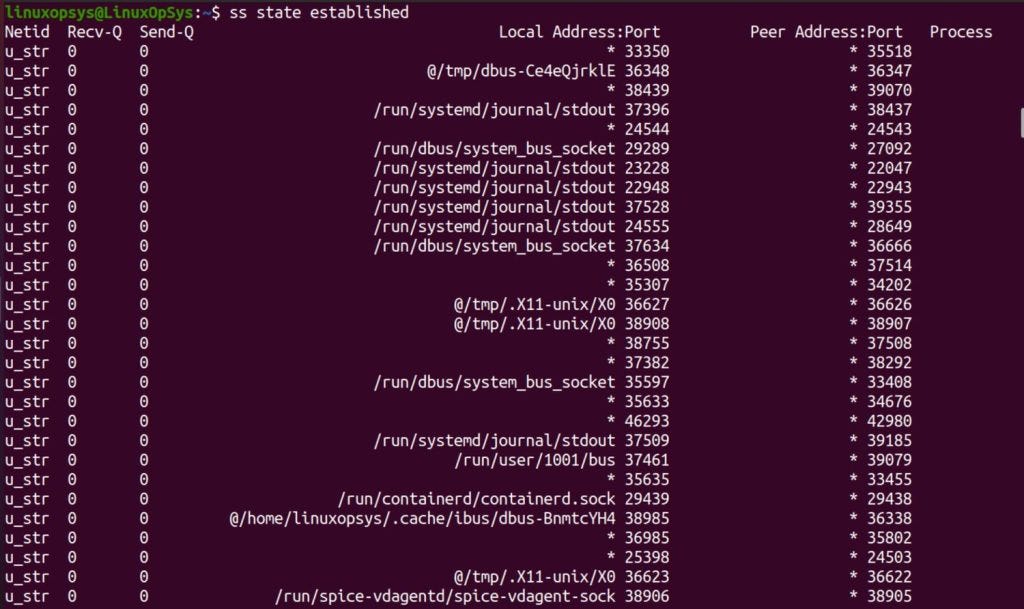
Additionally, ss can display process information linked to sockets using the -p option. This feature is particularly useful for tracing network activity back to specific processes:
$ ss -p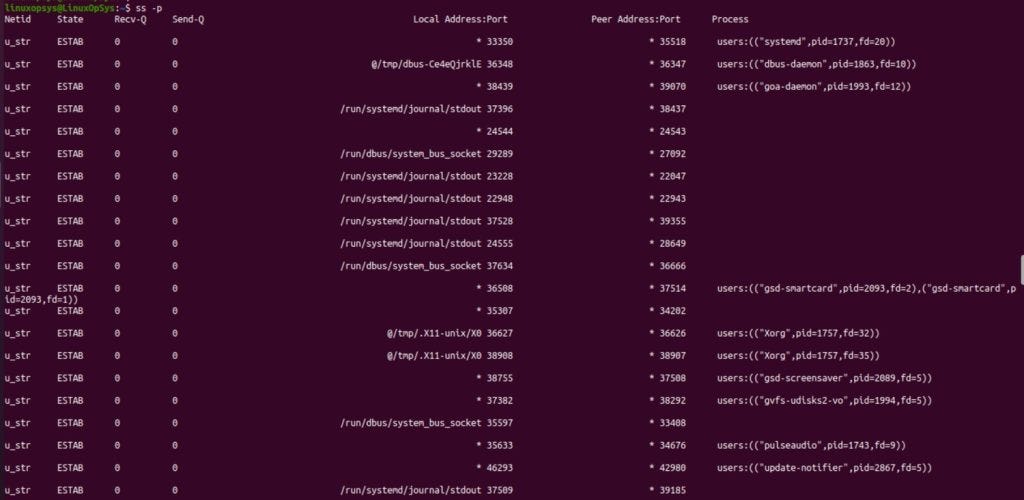
Thanks for reading!
If you enjoyed this content, don’t forget to leave a like ❤️ and subscribe to get more posts like this every week.
CONGRATULATIONS